
Quotation software features
Everything QuoteSketch does, grouped by the job it helps with: sales quotation software for the price, business proposal software for the detail behind it, and tracking once it is sent.
Quotations and estimates
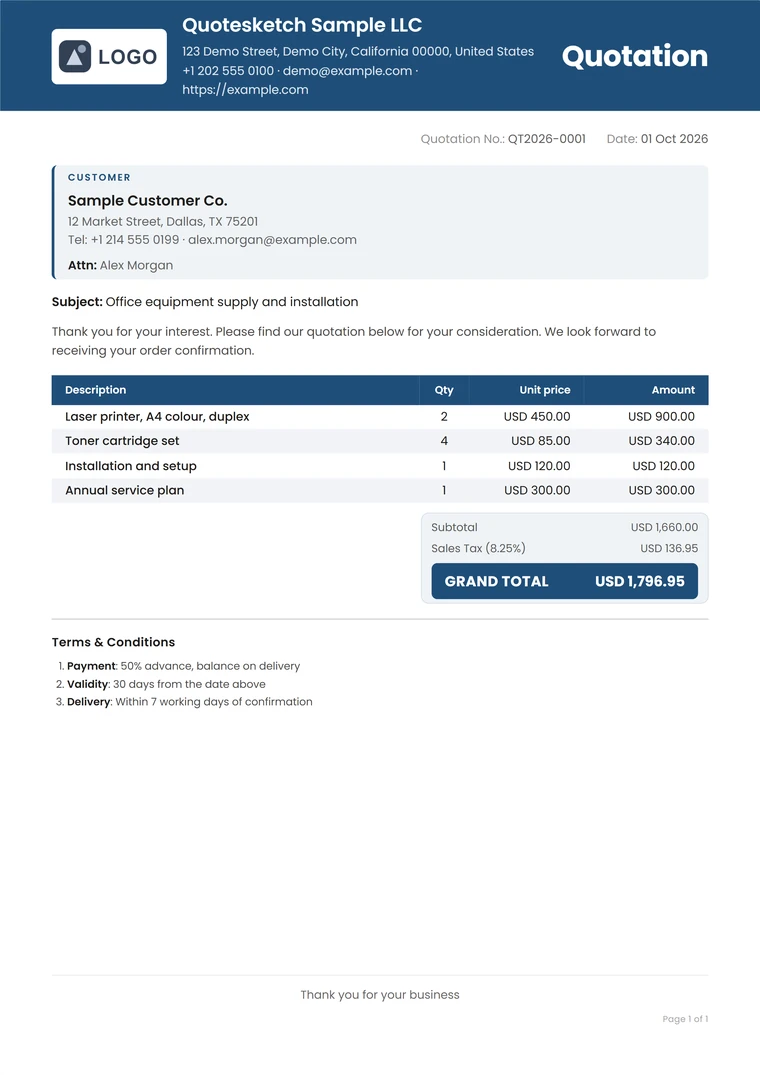
A priced quotation on one A4 page, with the arithmetic done for you. An estimate is the same document with the title set to Estimate.
- Line items with quantity, unit price and discount
- Contractor quoting software too: price materials, labour and call-outs as line items
- Subtotal, discount, tax and total calculated as you type
- A quote message, terms and conditions and a footer note, saved as defaults
- Reference numbering in the format you choose
- A draft kept while you work, so nothing is lost if you close the tab
- Print or download a PDF, with file names you can set
Proposals and additional pages
Proposal software that starts from the quotation: a business proposal is a quotation with more explanation after it. Add continuation pages for the detail, then title it as a commercial proposal, a technical proposal or a plain Proposal.
Document titles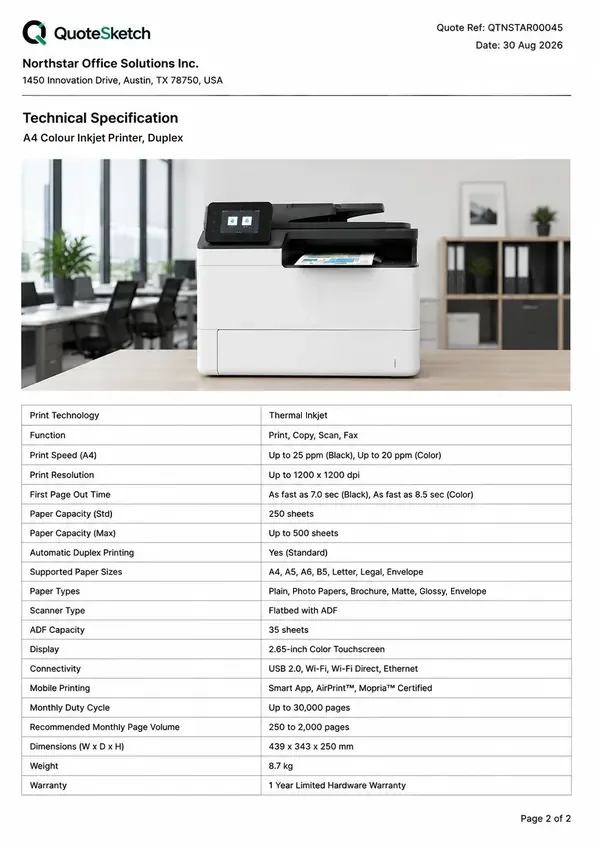
- Pages for a scope of work, technical specifications, a payment schedule or longer terms
- Product images and specification tables
- A business proposal PDF with your header, the quotation reference and page numbering on every page
- Two pages in all on the Free plan, up to ten on Pro
- Signed in, title the document Estimate, Proposal, Technical Proposal, Commercial Proposal, Techno-Commercial Proposal, Price Offer, or your own title of up to 40 characters
Clients and items
Save the people you quote and the things you sell, then add them to a quotation from a search box.
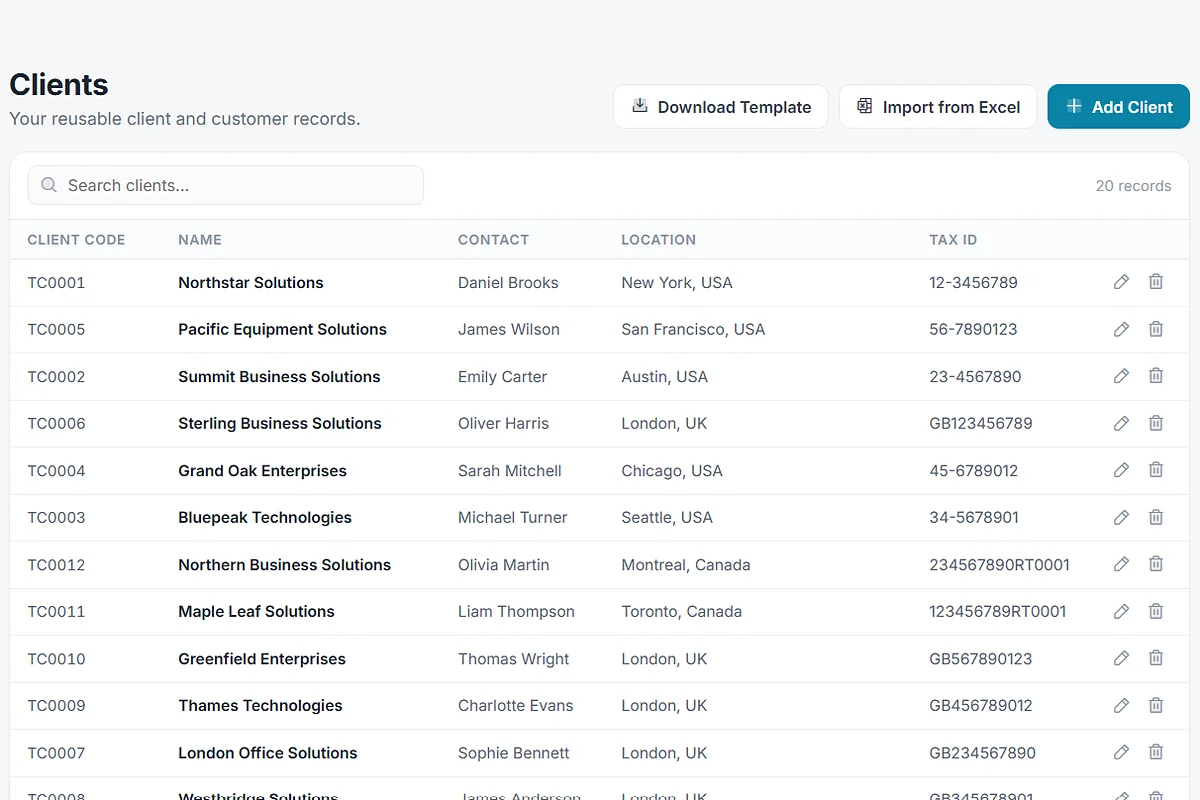
- Clients with contact details, address and tax number
- Items with a code, description, unit, default price and tax rate
- Preset subjects and sales people
- Import clients, items and preset subjects from Excel, with a template to download
- Details are copied onto the quotation, so editing a quotation never changes your saved records
- Free: 5 clients and 10 items. Pro: 500 clients and 1000 items.
Tax and currencies
Tax names are built in. The rate is always yours to enter.
- VAT, GST, Sales Tax, HST, PST, QST, IVA, TVA, JCT and TAX, plus Other Tax and No Tax
- Your own tax names, and a default tax and rate for new quotations
- No tax line is printed until a rate is entered
- Your VAT number and your customer's on the document
- 156 currencies, each with its own decimal places, and a default currency
- QuoteSketch lays out the figures and does not give tax advice
Your branding
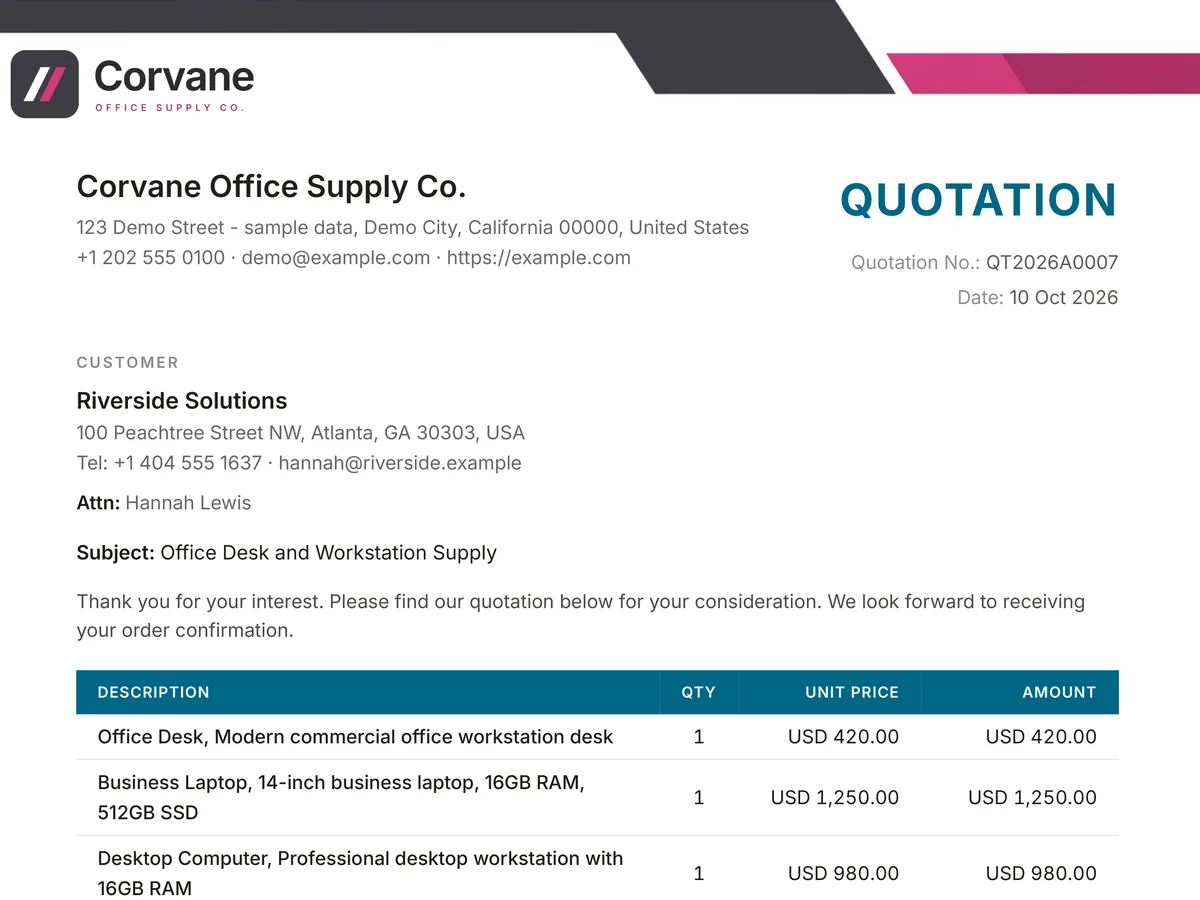
Every quotation goes out looking like it came from the same business. Brand it with your logo, or upload a full width letterhead for the top of the page.
See templates and designs- A logo, or a full width letterhead image
- Company details, tax number and bank details on every quotation
- A sales person on each quotation
- Classic, Modern, Minimal or a design of your own
Tracking and reuse
Track every quotation after you send it: see which are still open and which turned into work. Simple quotation management software, built in. Track and update quotations from anywhere: on the web, in your phone’s browser or in the Android app.
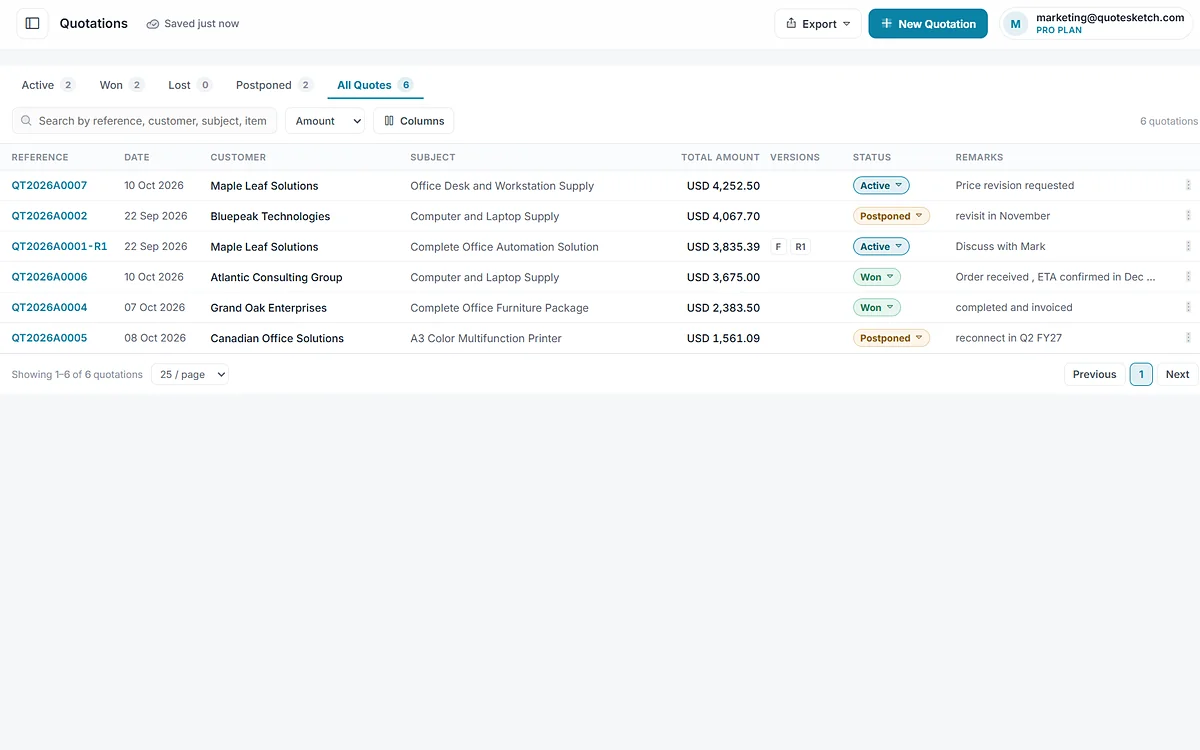
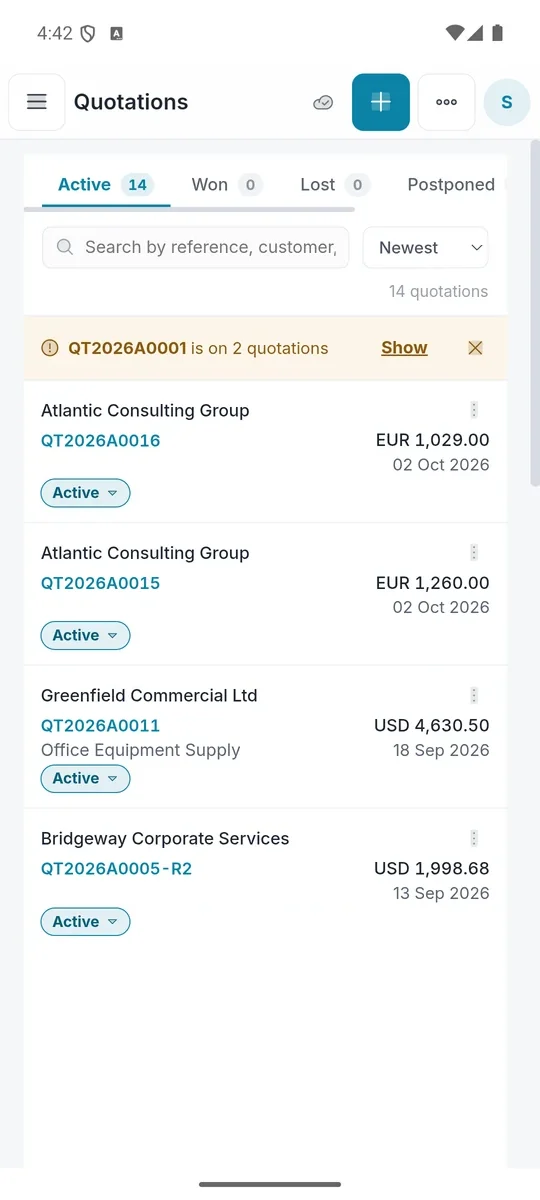
- Status for each quotation: Active, Won, Lost or Postponed
- Private internal remarks that never reach the customer
- Search by reference, customer, subject or item code
- Reuse a quotation for the next customer, or revise it while the original stays as sent
- Save a quotation as a template: 1 on Free, 10 on Pro
- A Quotation Summary and reports for the people who approve and invoice the work
- Export quotations as JSON or CSV
Web and Android sync
Signed in, your work is kept in your account and stays in step across your devices.
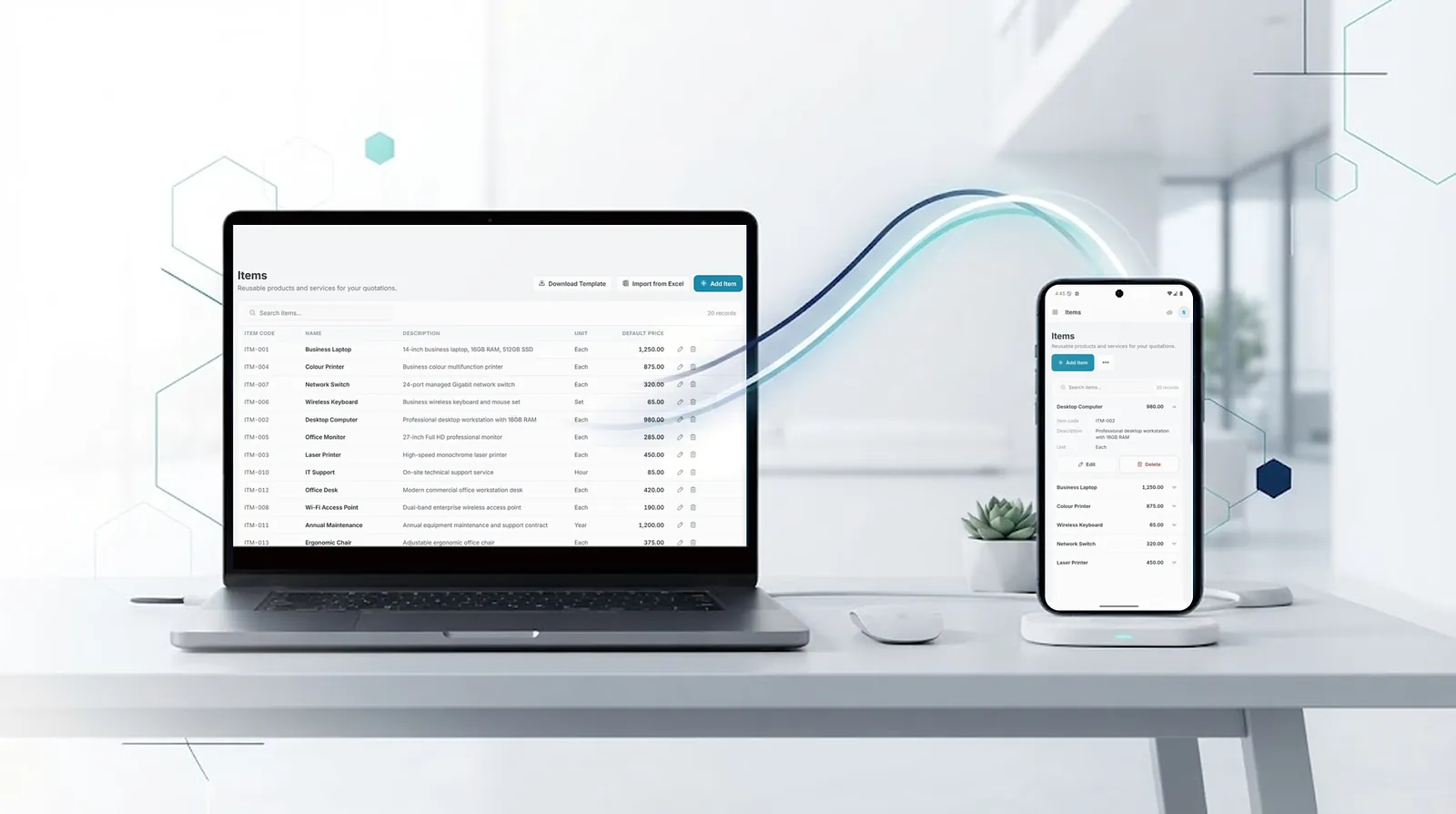
- Saved quotations, clients, items and settings sync between devices
- Logos and letterheads sync too
- Changes made offline are sent when you are back online
- The Android app uses the same account. Get the Android app: coming soon to Google Play.
- Guest quotations aren’t saved.
See it on a real quotation
Every feature on this page is in the same Builder. Open it and write a quotation you need.