What is QuoteSketch?

QuoteSketch is online quotation software for small businesses. You set up your company details once, then create quotations, estimates, proforma invoices and proposals in a few clicks and download them as professional PDFs, on the web or the Android app. Every quotation keeps its own reference number, record and status, so you always know what you sent and what you won.

Set up once. Create on the go in a few clicks.
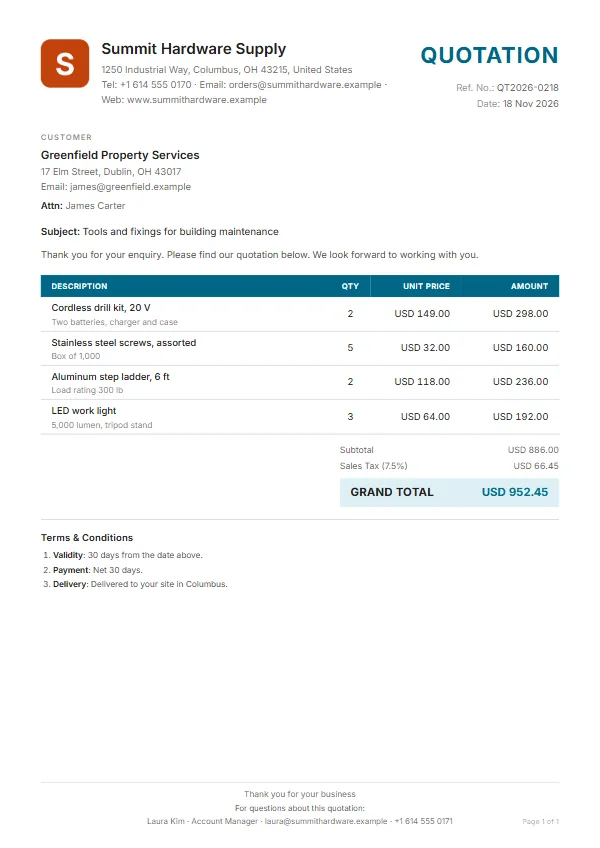
A product quotation made in QuoteSketch in the Classic design: four hardware items with quantities, unit prices, sales tax and payment terms

QuoteSketch at a glance

What it is
Online quotation and proposal software
Documents
Quotation, estimate, proposal, technical or commercial proposal, price offer, proforma invoice, or your own title
Where
Any web browser, plus an Android app with the same account
Without an account
Make and download a one-page quotation as a guest
With an account
Try Pro free for 30 days, no credit card or payment needed
Currencies
156
Tax
VAT, GST, sales tax or your own name and rate

The problem: quotations still made in Word and Excel

Many businesses, from one-person firms to large organisations, still make quotations by copying an old Word or Excel file. It works, but every new quotation means the same routine: find the last file, save a copy, type a new reference number, change the date, replace the customer, check every price and total, then export a PDF.

Over time the files pile up. Reference numbers get repeated or skipped, an old date slips through, and nobody can say quickly which quotations were sent, which were revised and which were won.

The Word and Excel way: a loop of eight steps for every quotationFind last file, save a copy, type a new reference number, change the date, replace the customer, check prices and totals, export a PDF, note it somewhere, then start again for the next quotation. Four steps are weak points where mistakes slip in: the reference number, the date, the prices and totals, and the record.1Find last file2Save a copy3Type newreference no.!4Change date!5Replace customer6Check pricesand totals!7Export PDF8Note itsomewhere!Next quotation: start againThe Word and Excel way: a loop of eight steps for every quotationFind last file, save a copy, type a new reference number, change the date, replace the customer, check prices and totals, export a PDF, note it somewhere, then start again for the next quotation. Four steps are weak points where mistakes slip in: the reference number, the date, the prices and totals, and the record.1Find last file2Save a copy3Type new reference no.!4Change date!5Replace customer6Check prices and totals!7Export PDF8Note it somewhere!Next quotation: start again
The Word and Excel way: eight steps that start again for every quotation. The dashed boxes marked "!" are where mistakes slip in.

Why a CRM is not always the answer

CRM and accounting systems can produce quotes, but they are built around internal sales processes, not the document your customer reads. Layout choices are usually limited, and longer proposals with product photos or specification pages are hard to build. Not everyone who writes quotations has access to the company CRM, or needs a full system just to send a price.

TaskWord or ExcelCRMQuoteSketch
Set up once, then reuseCopy old filesYesYes
Automatic reference numbersNoYesYes
Record and status of every quotationNoYesYes
Design the customer seesManualOften limitedClassic, Modern, Minimal or your own
Proposal pages (photos, specifications, tables)ManualOften limitedBuilt in
Who can use itAnyone with OfficeStaff with CRM accessAnyone with a browser or Android phone
Time to learnLowHighLow

How QuoteSketch works

The QuoteSketch way: six steps in a straight lineSet up once with your company, logo, tax and terms; pick the customer and items from saved lists; the reference number, date and totals fill in; choose the design and title; download the PDF; mark it Won, Lost or Postponed.1Set up oncecompany, logo,tax, terms2Pick customerand itemsfrom saved lists3Reference no.,date, totalsfill in4Choose designand title5Download PDF6Mark Won, Lostor PostponedThe QuoteSketch way: six steps in a straight lineSet up once with your company, logo, tax and terms; pick the customer and items from saved lists; the reference number, date and totals fill in; choose the design and title; download the PDF; mark it Won, Lost or Postponed.1Set up oncecompany, logo, tax, terms2Pick customer and itemsfrom saved lists3Reference no., date, totalsfill in4Choose design and title5Download PDF6Mark Won, Lost or Postponed
The QuoteSketch way: set up once, then six steps in a straight line, from picking the customer to marking the result.

Your company details, tax and terms go onto every new quotation automatically. Customers and items are picked from a search box instead of being retyped, and you can import them from Excel.

Four ways to work from an existing quotation

  • Reuse

    Same products, different customer. Pick the new customer; the new reference number and today's date are filled in for you.

  • Revise

    Same customer, updated prices or quantities. It is saved as R1, R2 and so on, and every older version stays in the record.

  • Modify

    Correct the quotation itself. The change replaces the old version, and no earlier copy is kept.

  • Summary

    A short internal overview of the quotation, for your own reference or for sales ordering.

Example

You quoted Client A for one office desk setup. A week later, Client B wants the same. Open the quotation, click Reuse and pick Client B. The new reference number and today's date are already there. Change a quantity or add a discount if you like, then download the PDF. Client A's quotation stays exactly as it was.

Reuse: a new quotation for Client B from Client A's quotationQT2026A0141 for Client A, one office desk setup, becomes QT2026A0142 for Client B with the same items. Changed for you: the reference number and the date. You choose: the customer, the quantity and the discount. QT2026A0141 stays as it was.QT2026A0141Client A1 office desk setupQT2026A0142Client Bsame itemsReuseChanged for you: reference no., dateYou choose: customer, quantity, discountReuse: a new quotation for Client B from Client A's quotationQT2026A0141 for Client A, one office desk setup, becomes QT2026A0142 for Client B with the same items. Changed for you: the reference number and the date. You choose: the customer, the quantity and the discount. QT2026A0141 stays as it was.QT2026A0141Client A1 office desk setupReuseQT2026A0142Client Bsame itemsChanged for you: reference no., dateYou choose: customer, quantity, discount
Reuse turns QT2026A0141 for Client A into QT2026A0142 for Client B: the reference number and date change for you, and you choose the customer, quantity and discount.

Your second quotation, step by step

Steps to make your second quotationWord or Excel: 8 steps. QuoteSketch Reuse: 5 steps, plus any changes you choose.Word or ExcelStep 1: Find the last fileStep 2: Save a copyStep 3: Type a new reference numberStep 4: Change the dateStep 5: Replace the customerStep 6: Check every price and totalStep 7: Export a PDFStep 8: Note it somewhere8 stepsQuoteSketch ReuseStep 1: Find the quotation in your Quotes listStep 2: Choose Reuse [New Quote]Step 3: Pick the new customerStep 4: Save QuoteStep 5: Download PDF5 stepsplus any changes you chooseSteps to make your second quotationWord or Excel: 8 steps. QuoteSketch Reuse: 5 steps, plus any changes you choose.Word or ExcelStep 1: Find the last fileStep 2: Save a copyStep 3: Type a new reference numberStep 4: Change the dateStep 5: Replace the customerStep 6: Check every price and totalStep 7: Export a PDFStep 8: Note it somewhere8 stepsQuoteSketch ReuseStep 1: Find the quotation in your Quotes listStep 2: Choose Reuse [New Quote]Step 3: Pick the new customerStep 4: Save QuoteStep 5: Download PDF5 stepsplus any changes you choose
Word or Excel: 8 steps. QuoteSketch Reuse: 5 steps, plus any changes you choose.
Steps where a mistake can slip inWord or Excel: 4 (the reference number, the date, the prices and totals, the record). QuoteSketch: 0, because the reference number, date and totals are automatic.Word or ExcelStep 1: Type a new reference numberStep 2: Change the dateStep 3: Check every price and totalStep 4: Note it somewhere4 stepsQuoteSketch0 stepsreference no., date and totals are automaticSteps where a mistake can slip inWord or Excel: 4 (the reference number, the date, the prices and totals, the record). QuoteSketch: 0, because the reference number, date and totals are automatic.Word or ExcelStep 1: Type a new reference numberStep 2: Change the dateStep 3: Check every price and totalStep 4: Note it somewhere4 stepsQuoteSketch0 stepsreference no., date and totals are automatic
Steps where a mistake can slip in: Word or Excel 4, QuoteSketch 0. The reference number, date and totals are automatic.

Word or Excel

  1. Find the last file
  2. Save a copy
  3. Type a new reference number
  4. Change the date
  5. Replace the customer
  6. Check every price and total
  7. Export a PDF
  8. Note it somewhere

QuoteSketch Reuse

  1. Find the quotation in your Quotes list
  2. Choose Reuse [New Quote]
  3. Pick the new customer
  4. Save Quote
  5. Download PDF

What else you can add

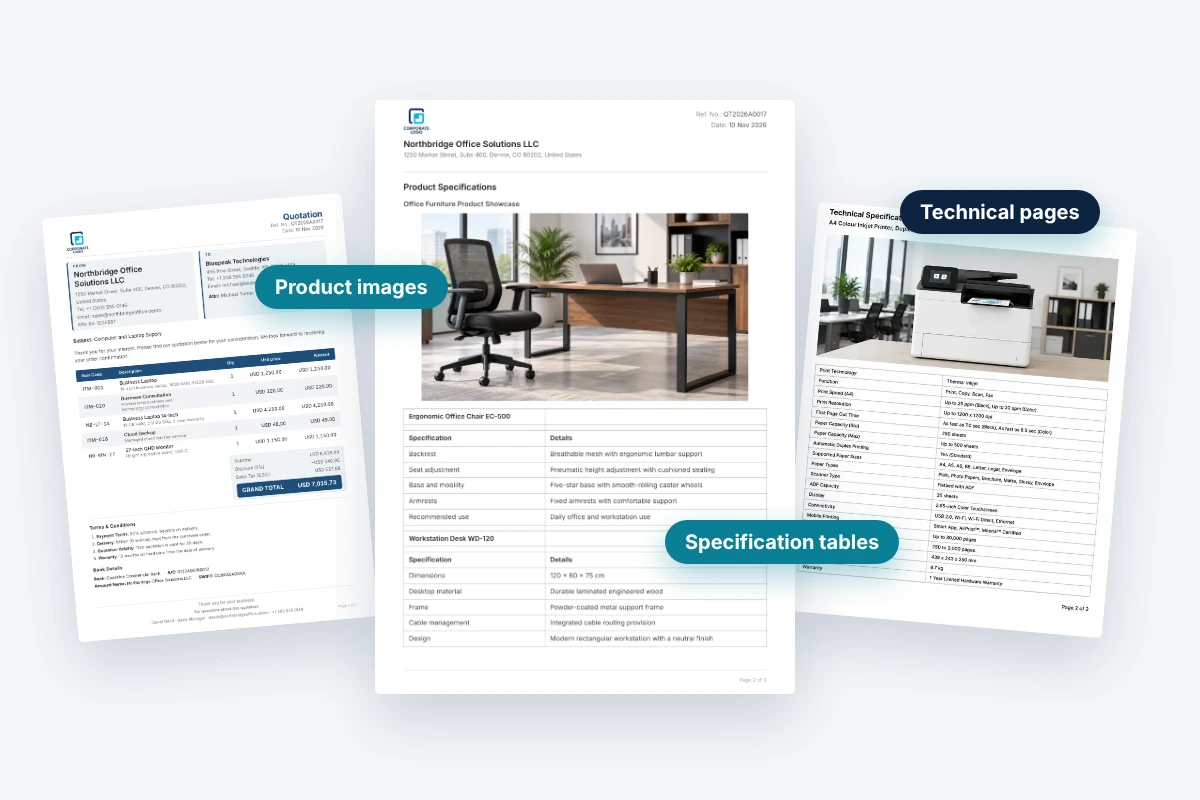
A multi-page quotation with product photos, technical pages and a specification table

Additional pages

Product photos, specifications, scope of work and tables, on pages of their own after the quotation.
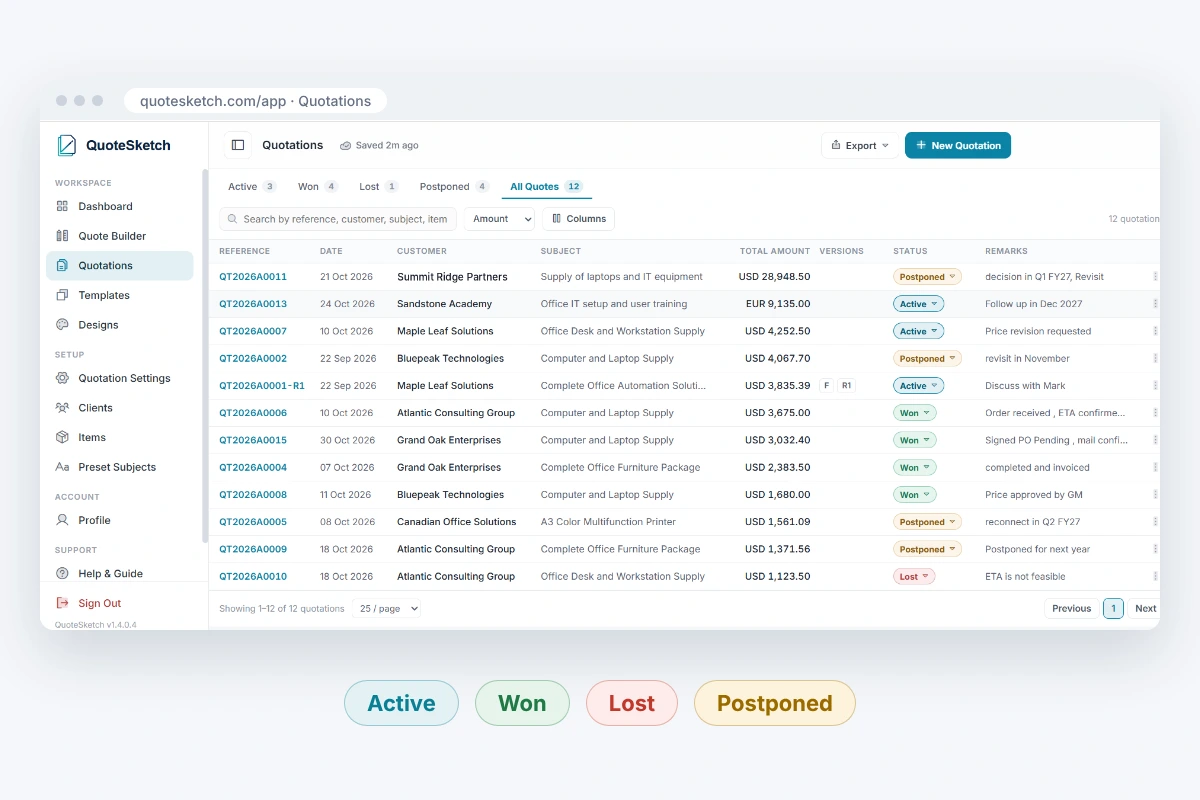
The quotation list with each quotation marked Active, Won, Lost or Postponed

Status tracking

Mark every quotation Active, Won, Lost or Postponed and see where each one stands.
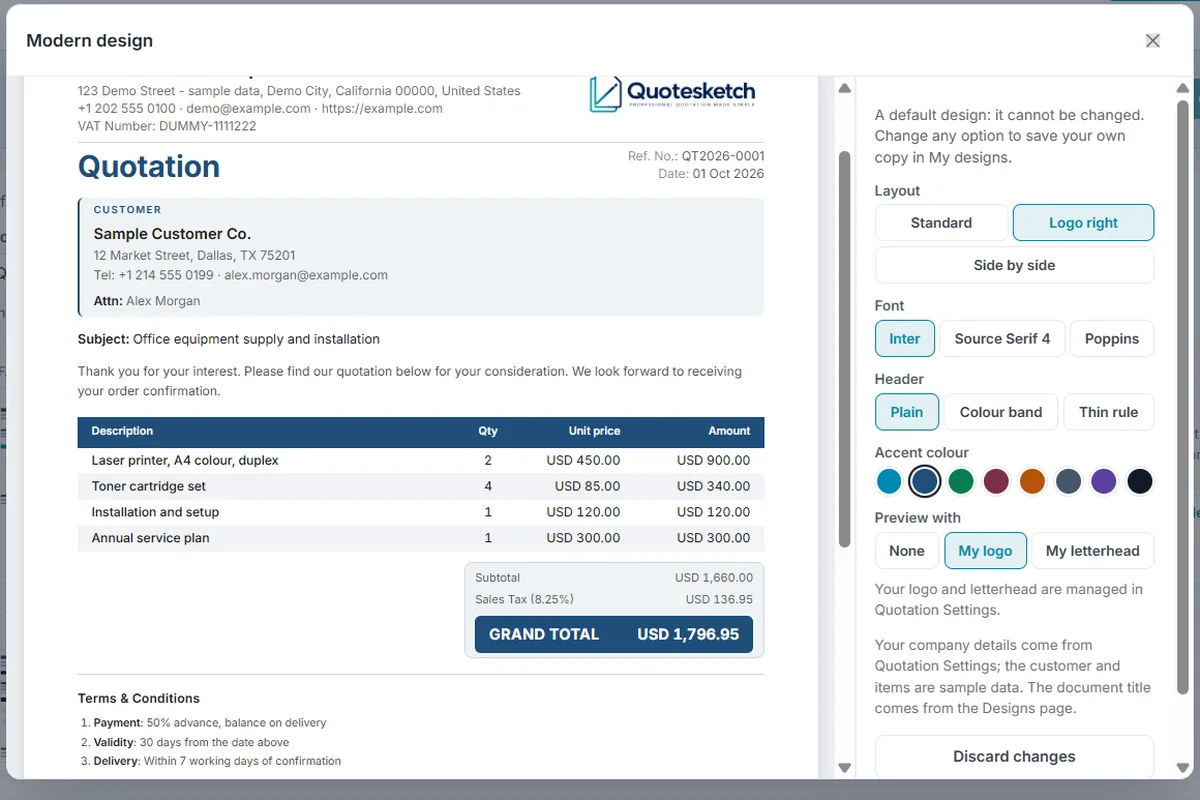
The design editor with a live preview of the quotation beside the layout, font, header and colour options

Designs

Classic, Modern and Minimal, and your own saved designs.
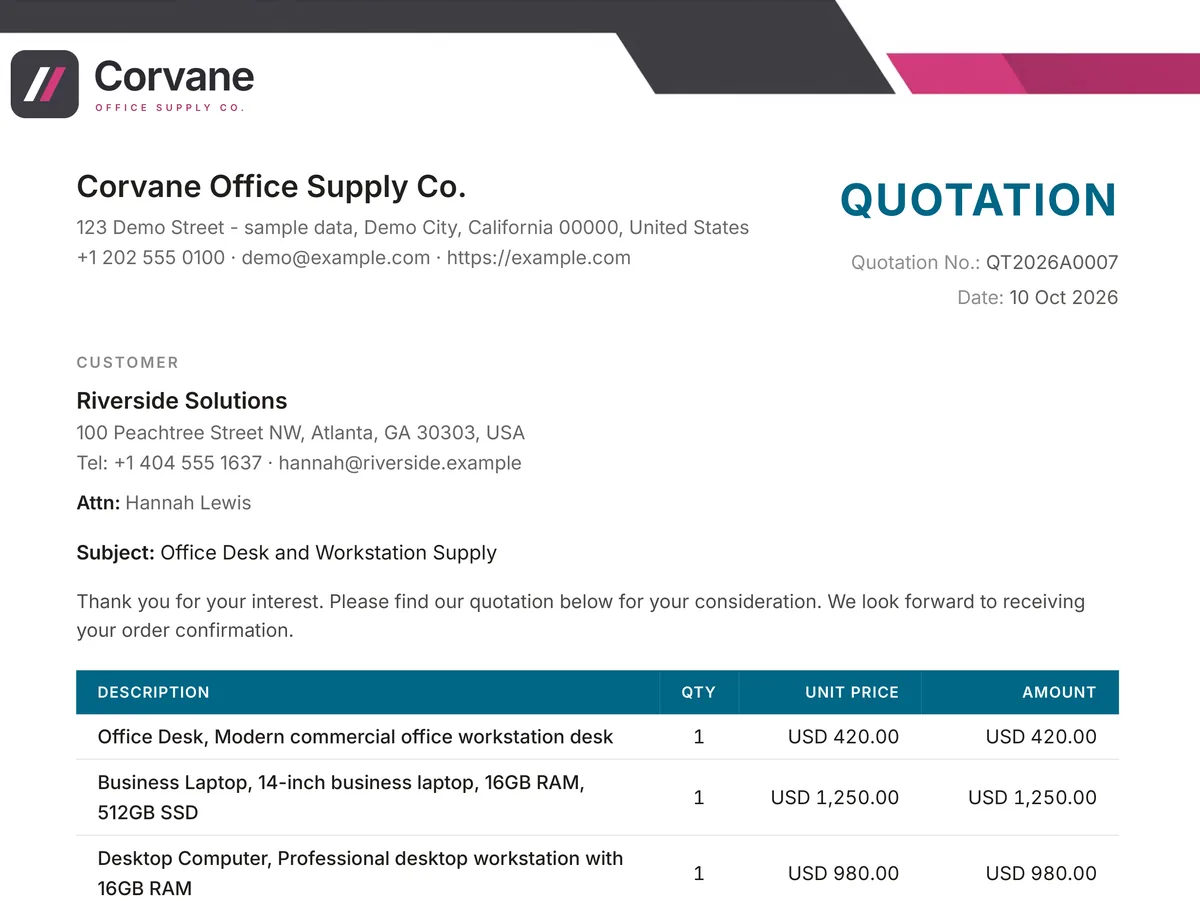
The top of a quotation with a full-width letterhead above the company details, the customer and the items table

Logo, letterhead and bank details

Your logo or full letterhead at the top and your bank details on the page.
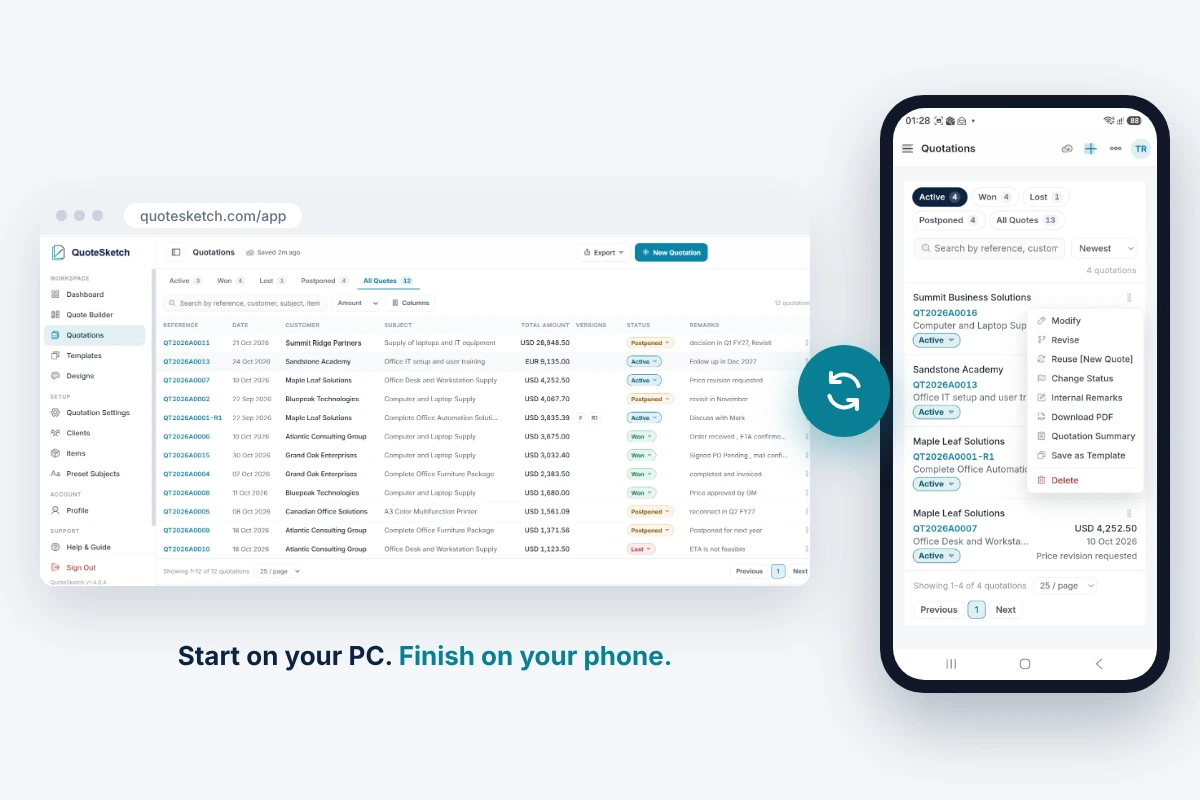
QuoteSketch on a desktop browser and an Android phone showing the same quotations, customers and items

Web and Android

The same account in a web browser and the Android app.

Who uses QuoteSketch

  • Suppliers and distributors
  • Contractors and trades
  • IT and equipment resellers
  • Maintenance and service companies
  • Consultants, agencies and freelancers

What QuoteSketch does not do (yet)

It makes and tracks quotations and proposals. It does not make tax invoices, take payments or collect e-signatures, and the Builder itself is in English, though you can write your quotation text in your own language.

Common questions

What is QuoteSketch?

Online quotation software that lets small businesses set up once and create professional quotations, estimates, proforma invoices and proposals in a few clicks.

How do I keep track of quotation numbers without Excel?

QuoteSketch gives every quotation its own reference number automatically and lists them all with their status.

How can I reuse a quotation for another customer?

Open it, click Reuse and pick the new customer. The reference number and date update for you.

Is quotation software better than Word or Excel?

For the odd quotation a file is fine. If you quote every week, software saves the retyping, keeps numbers in order and shows what was won.

Do I need a CRM to make professional quotations?

No. QuoteSketch works on its own in a browser or on Android, without a CRM.

Can I make a quotation on my phone?

Yes, in a phone browser or the Android app, with the same account.

Get started

Try Pro free for 30 days. No credit card or payment needed.

Updated